Post your products on your website
Your Survey Plan comes with a labeled webcam view, static viewshed maps, panorama diagrams, and a camera report that you can add to your own website. The process is simple, just download the content you want to share and add it to your website.
View My Camera Products (opens in a new tab)
The sample pages below offer ideas on how to design your webcam page using the CamStats PRO viewshed products.
- Sample Page 1 (opens in a new tab)
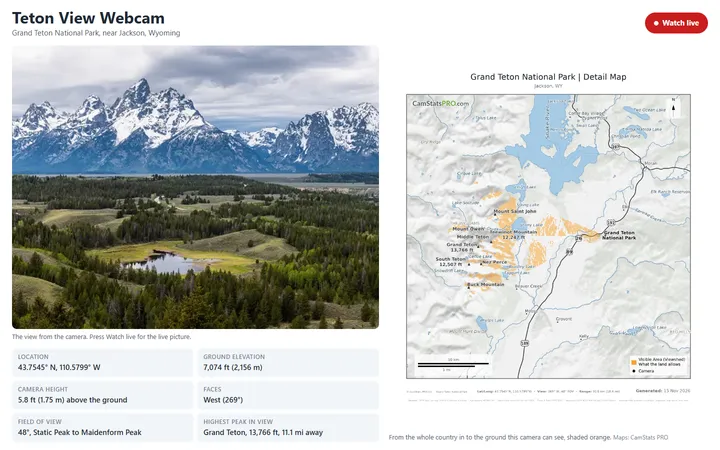 Download Page ProductsClick this button to download the CamStats PRO viewshed products that you will need to create the Sample 1 webpage design.View HTML Code
- Sample Page 2 (opens in a new tab)
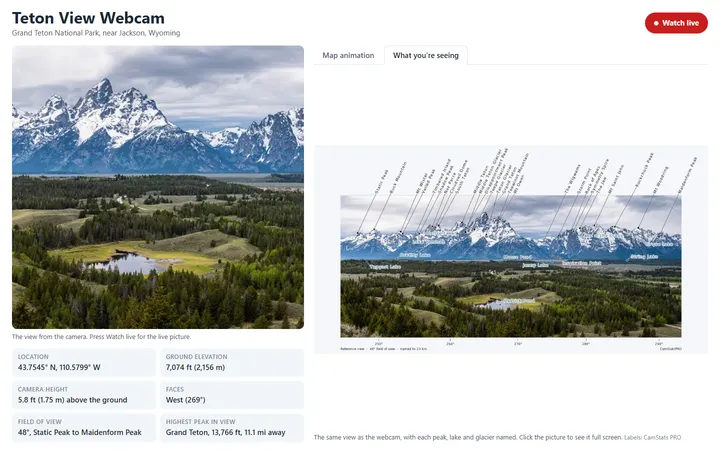 Download Page ProductsClick this button to download the CamStats PRO viewshed products that you will need to create the Sample 2 webpage design.View HTML Code
- Sample Page 3 (opens in a new tab)
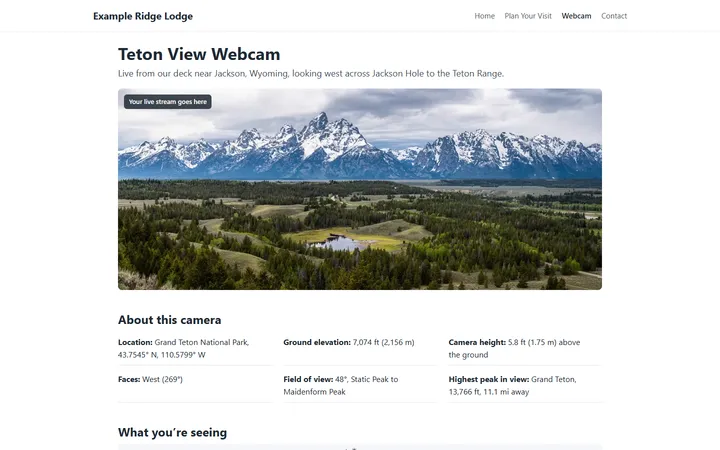 Download Page ProductsClick this button to download the CamStats PRO viewshed products that you will need to create the Sample 3 webpage design.View HTML Code
Your Live Survey Plan includes all the products of the Survey Plan plus a hosted webpage displaying an interactive 2D map, a 3D view of the terrain and detailed information about what your camera can see. Add a link from your website so visitors can explore it.
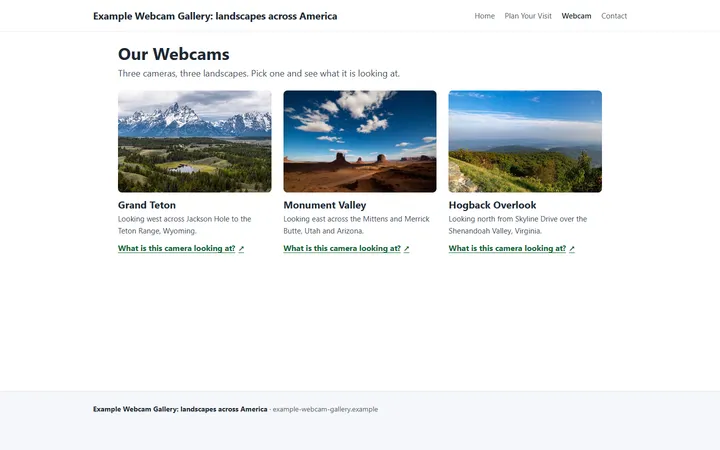
The process is simple, just create a link with the text “What is this camera looking at?” below your webcam image. Then link it to the URL below:
Open this page from one of your cameras to see its live page address.
View My CamerasYour webcam and link should look like the sample pages below.
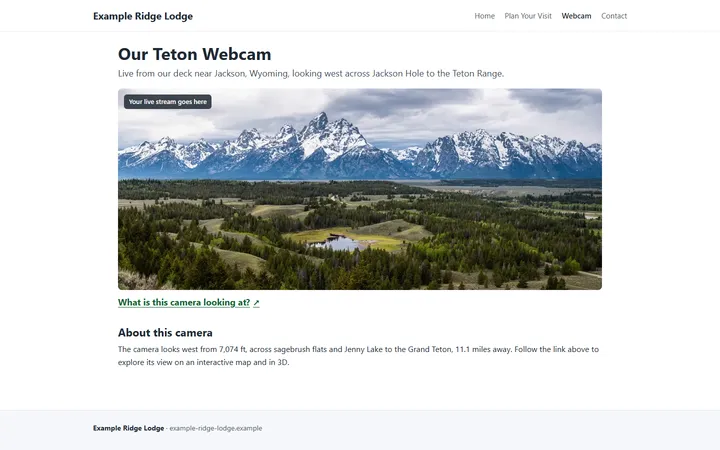
Note: Your Live Survey Plan comes with a labeled webcam view, static viewshed maps, panorama diagrams, and a camera report that you can add to your own website. Click the link below to access these camera products:
Your Overview Map brings all your cameras together on one interactive map, showing where each camera is, which way it faces and what it can see. We host the map and you add it to your website.
Your Overview Map isn’t published yet. Go to the Overview Maps page to finish setting it up.
Go to Overview Maps