Show visitors what your camera is looking at
Add one line under your webcam. It answers the question every webcam visitor asks — and it links to your own CamStats PRO page, where they can see the terrain the camera covers and name what they are looking at.
See it on an example website— three placements on one pretend page
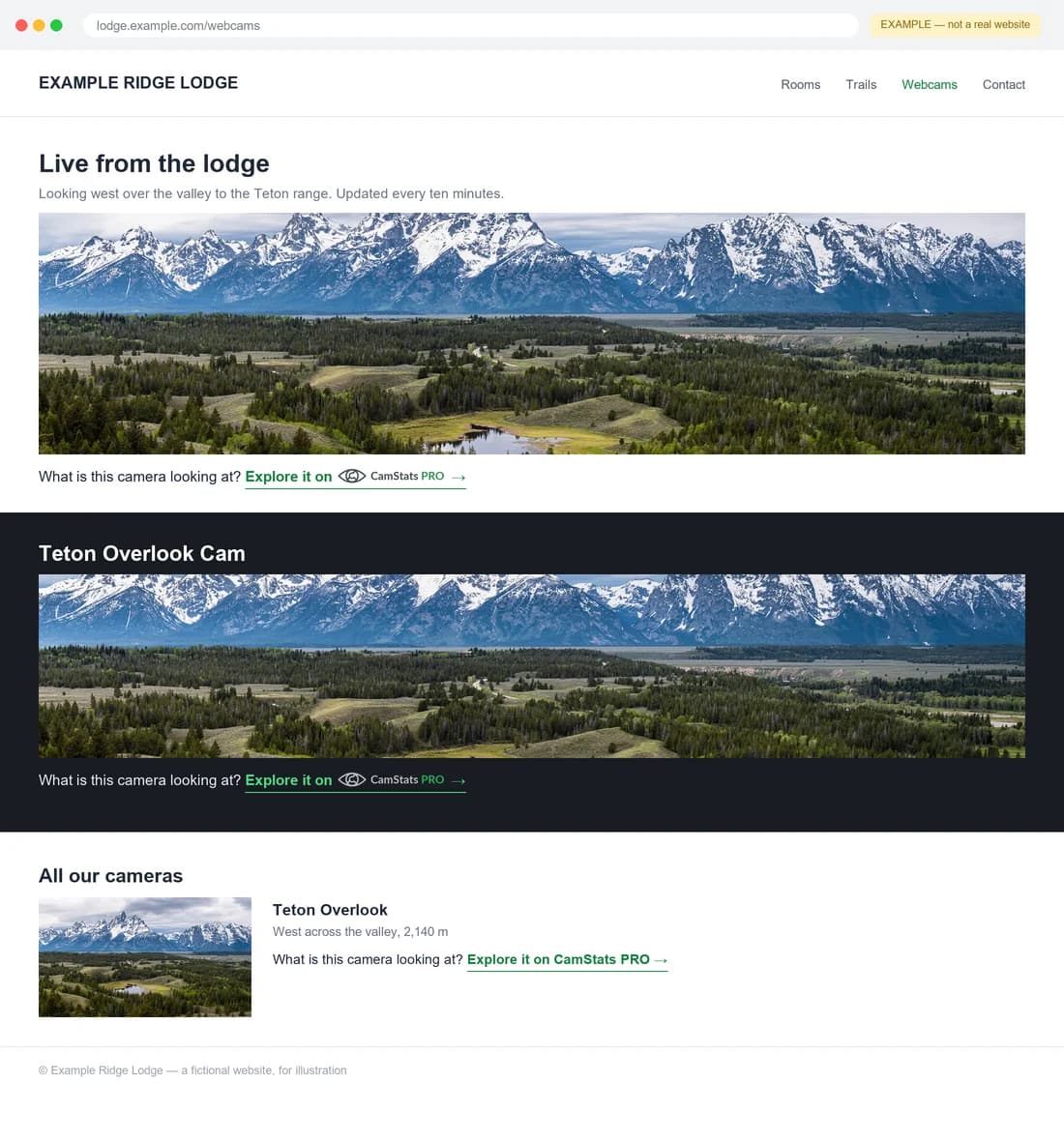
A fictional lodge, carrying one of our real cameras three times: on a light page, in a dark band, and in a compact listing. Each one uses the version that suits its background — which is the whole reason there is a choice.
 Open the real page all three of those links point to → (opens in a new tab)
Example Ridge Lodge is not a real business and lodge.example.com is not a real address. The camera and the page it links to are ours, and real.
1. Pick the version that suits your page
How it will look
 →
→2. Copy it
This is an example. Open this page from your camera’s Instructions link and the snippet will carry your own camera’s address instead of your-camera.
<p>What is this camera looking at?
<a href="https://www.camstatspro.com/projects/your-camera?ref=sitebadge">Explore it on
<img src="https://www.camstatspro.com/brand/camstats-pro-on-light.png"
alt="CamStats PRO" width="114" height="18"
style="vertical-align:text-bottom;display:inline-block">
→</a>
</p>3. Paste it under your camera image
Wherever your site lets you add text or HTML. There is no script and nothing to keep updated — if we improve the page behind the link, your visitors get it without you touching anything.
If you are placing it by hand
The snippet above already does all of this. These are for anyone building it into a template themselves.
- Keep its proportions. The mark is wide — 114 × 18 at its intended size. Dropping it into a square box halves its height.
- Around 18 px tall, sitting on the same line as your text. The file is supplied at three times that, so it stays sharp on high-density screens.
- Don’t recolour or restyle it. If your page is dark, use the dark version above rather than inverting the light one.
- Keep the alt text as “CamStats PRO” and keep the image inside the link. That is what makes the whole thing read sensibly to a screen reader and to search engines.
Questions we get asked
Does it slow my page down?
No. It is one small image and a link — no JavaScript, no web font, nothing that runs. Its width and height are stated in the snippet, so your page does not shift as it loads.
Will I have to update it?
No. The link points at a permanent address. When we improve the page behind it, your visitors get the improvement without you touching your site.
We are a public body and cannot appear to endorse a supplier.
Most public sites already answer this with a single line on their own policies page — that an external link is not an endorsement. Federal guidance also asks that a link say where it goes in its own text, which this one does. If your rules still do not allow it, the third option above drops our name entirely, and you are welcome to add whatever external-link marker your style guide uses.
Where do I find my camera’s link?
On your dashboard, beside your public page address, there is an Instructions link. Open this page from there and the snippet arrives with your own camera’s address already in it.
Still stuck? Ask us and we will send you the exact line for your camera.